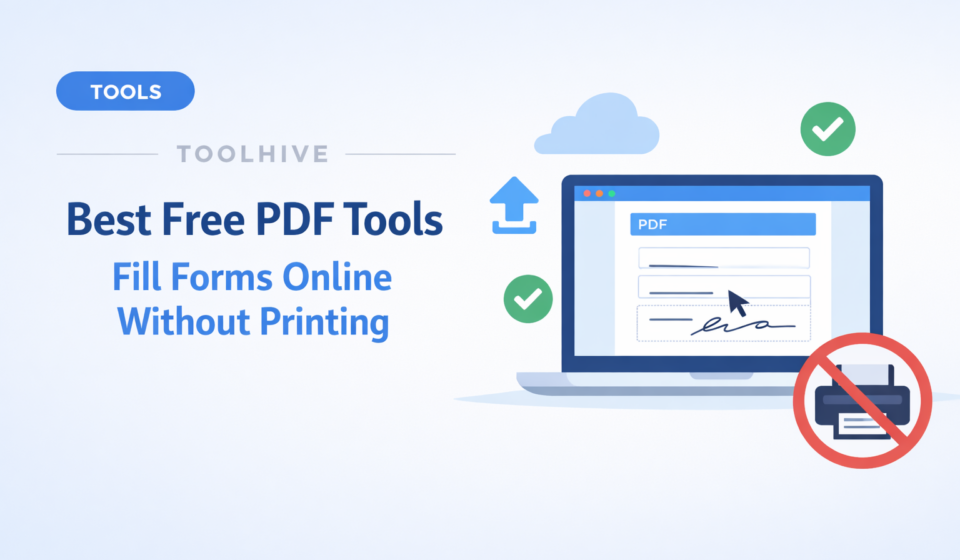

Quick answer: The best free tools to fill and sign PDF forms online are DocHub, PDFescape, and Sejda PDF Editor. DocHub is the fastest overall, PDFescape is the strictest free-first option, and Sejda gives you the most control before paying. None of them require printing or desktop installs for basic form filling.
If you only need one recommendation: Use DocHub today. It lets you upload a PDF, type into the fields, add a signature, and download the finished file in under five minutes.
Introduction
Most people looking for “best PDF tools” do not want another complicated app. They just want to fill a form, sign it, and send it back without printing. The real problem is speed and reliability, not learning a new interface.
This guide skips bloated feature lists and focuses on the tools that actually solve the problem on a busy day. I tested the most popular free options and kept only the ones I would hand to a beginner or coworker.
Quick comparison table
| Tool | Best for | Free tier limits | Signature support | Worth paying? |
|---|---|---|---|---|
| DocHub | Fastest overall, clean UI | 5 signed docs/month | Yes (draw/type/upload) | Only if you fill forms weekly |
| PDFescape | Completely free browser use | 10 MB file size / 100 pages | Yes (type + insert signature image) | Upgrade only for desktop editing |
| Sejda PDF Editor | More manual control and layout edits | 3 tasks/day, 50 MB files | Yes (draw/type/upload) | Worth it if you edit forms daily |
| Adobe Acrobat Online | Familiar Adobe workflow | Free fill & sign, but upsells quickly | Yes (Fill & Sign) | Upgrade only if you already live in Adobe apps |
Best overall pick
DocHub is the best starting point for almost everyone. The UI is simple, it autosaves, and you can draw or upload signatures without extra steps. You only need an email login, and the free plan covers occasional paperwork.
Runner-up options worth testing
- PDFescape — best if you insist on pure browser use with no login. The free tier keeps everything online, but file size/page limits can bite if the form is long.
- Sejda PDF Editor — best if you want more precise placement (checkboxes, radio buttons, text alignment). It has a clean interface but limits you to three tasks per day on the free tier.
- Adobe Acrobat Online — useful if you already use Adobe tools. It handles fill-and-sign nicely, but the free flow pushes you toward the paid plan fairly quickly.
Step-by-step: how to pick the right tool
- Check file size and pages. If the form is under 10 MB/100 pages, PDFescape works. Larger files fit better in DocHub or Sejda.
- Decide if you need quick signature support. All four tools have it, but DocHub and Sejda make it easiest.
- Upload one real form. Watch how fast you can type text, check boxes, and insert signatures.
- Download and test the output. Make sure the form prints clearly and the text is still crisp.
- Only upgrade if this becomes routine. Most people never need the paid tiers unless they handle forms weekly.
Real use cases for beginners
- Students submitting college and scholarship forms
- Job seekers filling HR paperwork
- Apartment applications and lease addendum forms
- Medical or insurance forms that arrive as PDFs
- Government service forms where a digital signature is accepted
Before vs after example: Instead of printing the form and scanning it again, you upload once, fill, sign, and email it back in under 10 minutes.
Pros and cons of online PDF form fillers
Pros:
- No installs or printer required
- Sign directly in the browser
- Fast for one-off paperwork
- Free plans exist for occasional use
Cons:
- Free tiers have file size/page limits
- Uploading sensitive documents requires trust
- Some tools add watermarks if you exceed limits
- Heavy daily use typically triggers paid tiers
When to upgrade to a paid plan
- You fill or sign PDFs every week
- You need reusable templates, bulk sending, or audit trails
- You handle sensitive files that require on-prem or encrypted storage
- You need integrated workflow features (team approvals, reminders)
For everyone else, stay on the free plan until you hit the usage limits more than once.
FAQs
Is it safe to upload PDFs to these tools?
For non-sensitive documents, generally yes. For confidential files, review the privacy policy or use a desktop tool.
Can I sign a PDF online for free?
Yes. DocHub, PDFescape, Sejda, and Adobe Acrobat Online all let you add a signature without paying.
What if the form has advanced fields?
If you need complex field editing, Sejda or a desktop tool like Adobe Acrobat Pro might be better. For basic text/checkbox/signature, the tools above are enough.
Will the file look the same after filling?
Yes, as long as you download the completed PDF and check it before sending. Always review the final file for formatting issues.
Which tool is truly free?
PDFescape is the strictest free browser option. DocHub is “free enough” for a few forms per month.
Related posts
- Best Free Tools to Compress PDF Without Losing Quality
- Free Online Tools to Convert Handwritten Notes to Text
Conclusion
If you want the fastest path, start with DocHub. It is the one I recommend most often because it balances simplicity, signature support, and real-world limits. Test one real form, and you will know in minutes whether it solves your workflow.